Collab.Land Member Portal Guide
Welcome to your Collab.Land Member Portal. This is your home base. From here you can manage your wallets, check your communities, complete quests, and update your profile - all in one place.
New here? Start with Getting Started, then verify a community.
Considering Pro? Compare plans in Subscription or browse the FAQ.
Getting Started
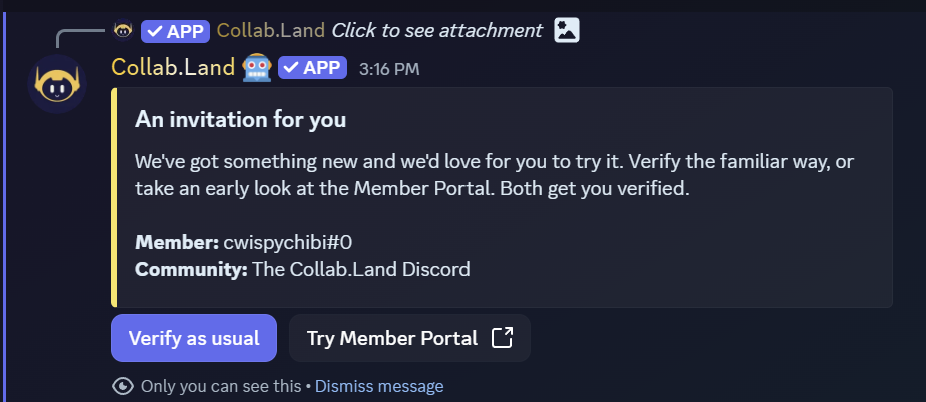
You get to the Member Portal through Discord. When you click Let's go! in a token gated Discord server, it brings you here to verify your wallet and get your roles.
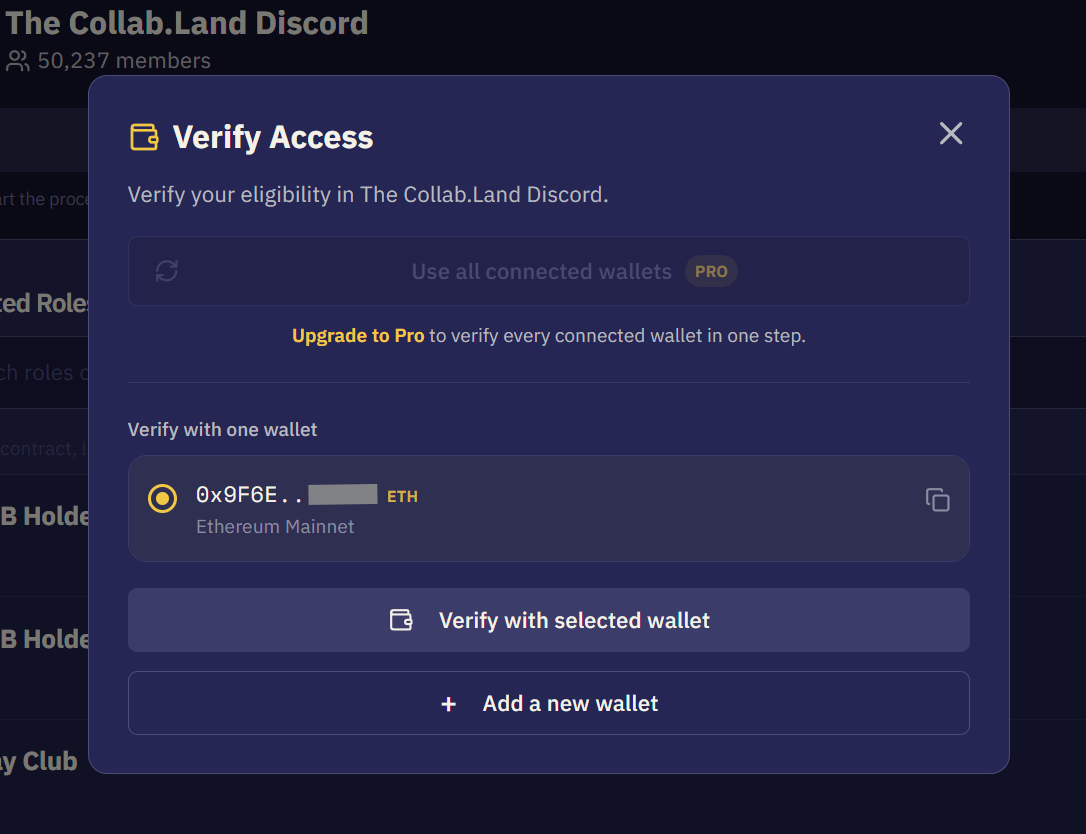
When you arrive, a Verify Access window opens. This is where you choose how to verify.
| Option | Plan | What it does |
|---|---|---|
| Use all connected wallets | Pro | Checks all your wallets at once and gives you every role you qualify for. |
| Verify with one wallet | All members | Pick one wallet from your list and click Verify with selected wallet. |
| Add a new wallet | All members | Connect a wallet that is not linked yet. After adding it, complete verification from the verification banner below. |
If you close the verification window and need to come back, a yellow banner will appear at the top of the portal. Click Continue to pick up where you left off, or Not now to dismiss it. If you dismiss it, go back to Discord and click Let's go! again to start over.
Navigation
The left side menu takes you to five sections:
| Section | Description |
|---|---|
| Overview | Your dashboard |
| Wallets | Manage your connected wallets |
| Communities | See and verify your communities |
| Quests | Complete quests and earn rewards |
| Settings | Update your profile and account |
Overview
The Overview is your dashboard. It shows you everything about your membership at a glance.
At the top you will see four stats:
- Connected Wallets - how many wallets you have linked. Click Manage to go to the Wallets section.
- Communities - how many token gated communities you belong to.
- Roles Earned - how many roles you have across all your communities.
- Member Tier - whether you are on the Free or Pro plan.
Your Communities lists the communities you have joined and your role status in each one. Click any community to go to that community in the Communities section. Click View All to see the full list.
At the bottom of the Your Communities panel, you will see a Join more communities card. Click Browse Communities to discover new token gated communities to join.
Recent Activity shows a live log of what has happened on your account - wallets connected, roles granted, and communities joined - with timestamps.
At the bottom of the page, a Quests banner links to the Quests section. Click Explore Quests to see what is available.
Wallets
The Wallets section is where you manage the wallets linked to your account. Communities use your wallets to check your token holdings and give you roles.
Connected Wallets shows every wallet you have linked. For each wallet you can see:
- The wallet name (for example, MetaMask, Ronin, Backpack EVM)
- A short version of your wallet address
- The network it is on (for example, Ethereum Mainnet)
- An icon to view the full address and an icon to copy it
- A Disconnect button to remove it from your account
To add a wallet, click + Add Wallet and follow the steps. Once added, the wallet is ready for verification. You can also choose to show it on your public profile - turn that on in Settings under Wallets on Profile.
Removing a wallet may affect your access to communities that need tokens from that wallet. Make sure you no longer need it before disconnecting.
Communities
The Communities section shows all the token gated communities you belong to.
Two tabs let you switch views:
- Joined - communities you are already in. The number in brackets shows how many.
- Discover - Collab.Land's own server and partner communities you can explore and join.
Use the search bar to find a community by name.
Each community card shows:
- The community name and icon
- The number of members
- The token gated roles in that community. Communities with many roles show a note like +14 more roles.
- A Verify button to re-run verification
Click Verify to re-check your wallet holdings and update your roles. This is useful if you have recently got new tokens and want your roles to reflect that.
Community Detail
Click on any community card to open its detail page. Here you can see all the token gated roles in that community and what tokens you need to earn each one. This helps you check that you are getting every role you qualify for.
Each role row shows the role name and its token requirement. Use the search bar to find a specific role.
One-Click Verification lets you re-verify with all your wallets at once from the community detail page.
Click the back arrow at the top left to return to your Communities list.
Quests
Quests are activities you can complete to earn rewards and engage with your communities.
At the top you will see two stats:
- In Progress - quests you have started but not finished
- Quests Completed - quests you have finished
The Featured Quest is highlighted at the top of the page.
Four tabs help you filter quests:
- Global - quests open to all Collab.Land members
- Community - quests from communities you belong to
- In Progress - quests you are working on
- Completed - quests you have finished
The current global quest:
- Proof of Word - the daily Web3 word game
Click View on any quest to open it.
Proof of Word
Proof of Word is a daily word game. Each day there is a new Web3 word to guess. Every member gets the same word.
How to play:
- The length of today's word is shown before you start. For example: "Today's word is 4 letters."
- You have 5 tries to guess the word. Type a guess and submit.
- After each guess the tiles change color to show how close you are:
| Color | Meaning |
|---|---|
| Green | Right letter, right position |
| Yellow | Right letter, wrong position |
| Red | This letter is not in the word |
A new word drops every day at midnight UTC.
Your stats show above the game board:
- Day Streak - how many days in a row you have won
- Total Wins - your all-time wins
- Win Rate - the percentage of games you have won
Hints are available if you get stuck. Each hint gives you a clue about what the word means - for example, "the name of the database that cryptocurrency utilizes." No letters are revealed.
Free members get 2 hints per day. Hints reset at midnight UTC.
Pro members get unlimited hints with no daily limit.
The Leaderboard shows how members rank against each other. Members are shown by their Discord username. After you finish the daily word, click Share to Discord to post your result.
Settings
Settings is where you manage your profile, social accounts, wallet visibility, contact details, and membership plan.
Profile
Public profile shows how you appear to other members. Your avatar comes from your Discord account and cannot be changed in the portal. You can update:
- Display name - the name shown on your profile. Leave it blank to use your Discord username.
- Bio - a short description of yourself, up to 500 characters.
My communities controls which communities appear on your public profile. All are hidden by default. Toggle Show on profile for any community you want to show. Use Previous and Next to move through the full list. Note that communities you share with a visitor are always shown separately, regardless of these toggles.
Connected socials lets you link social accounts to your profile:
- Discord - is always shown. It is tied to how you sign in and cannot be hidden.
- GitHub - connect your account and choose whether to show it on your profile.
- X / Twitter - click Connect X / Twitter to link your account.
Wallets on profile controls which wallets appear on your public profile. All wallets are hidden by default. Toggle Show on profile for any wallet you want to show. Use Previous and Next to move through the list. To add or remove wallets, go to the Wallets section.
When you are done, click Preview to see how your profile looks, or click Save profile to save your changes.
Contact
This is where you manage the email address on your account.
Your current email is shown here. To change it, type a new email and click Save. To remove it, click Remove.
Your email is used for Collab.Land updates and news only. It is never shown to other members, communities, or server admins.
Subscription
This is where you manage your membership plan.
| Feature | Free ($0/mo) | Pro ($2.99/mo) |
|---|---|---|
| Connect and manage multiple wallets | Yes | Yes |
| Verify wallets | One at a time | All at once |
| See token requirements for communities | Yes | Yes |
| Join quests | Yes | Yes |
| One-click verification from the portal | No | Yes |
| Activity history on Overview | No | Yes |
| Ad-free experience | No | Yes |
| Priority support | No | Yes |
| Proof of Word hints | 2 per day | Unlimited, always free |
Your current plan is highlighted. If you are on Pro, you will see a Cancel option to switch back to Free.
Frequently Asked Questions
Verification
I verified my wallet but did not get my role. What do I do?
First check that your wallet holds the tokens needed for that role. Go to Communities, open the community, and look at the role requirements. If your holdings look right, click Verify on the community card to run verification again. If it still does not work, try disconnecting and reconnecting your wallet in Wallets, then verify again.
My roles disappeared. What happened?
Roles are removed if your wallet no longer meets the token requirements - for example if tokens were moved or a balance dropped too low. Go to the community detail page and check whether your holdings still meet the requirements. If they do, click Verify to get your roles back.
I dismissed the verification banner. How do I finish verifying?
Go back to Discord, find the verification prompt in the server, and click Let's go! to start a new session. See Getting Started for more on the verification banner.
Can I verify with more than one wallet?
Yes. Pro members can verify with all connected wallets at once using Use all connected wallets in the Verify Access window, or One-Click Verification on the community detail page. Free members verify one wallet at a time. See Subscription for a full plan comparison.
Wallets
How many wallets can I connect?
You can connect as many wallets as you like. Free members verify one at a time. Pro members can verify all wallets at once. See Subscription.
I removed a wallet by mistake. What do I do?
Click + Add Wallet in Wallets and reconnect it. Then go to Communities and click Verify to restore any roles that needed that wallet.
Why are my wallets not showing on my profile?
Wallets are hidden by default. Go to Settings, find Wallets on profile, and turn on Show on profile for each wallet you want to display.
Communities
I joined a new community but it is not showing in the portal. What do I do?
Make sure you finished verification in Discord for that community. If you did, try refreshing the portal. If it still does not appear, go to Communities and click Verify on the community card.
What is the difference between Joined and Discover?
Joined shows the communities you already belong to. Discover shows Collab.Land's own server and partner communities you can explore and join. See Communities.
Quests
My Proof of Word streak reset. Why?
Your streak resets if you do not complete the daily word before midnight UTC. You need to win the word each day to keep your streak going. See Proof of Word.
I used both my hints and still cannot get the word. What do I do?
Free members get 2 hints per day. When both are used, upgrade to Pro for unlimited hints or come back tomorrow when your hints reset at midnight UTC. See Proof of Word hints and Subscription.
Account and Settings
Can I change my avatar?
Your avatar comes from your Discord account. To change it, update it in Discord and it will update in the portal automatically.
My display name is not showing correctly. How do I fix it?
Go to Settings and check the Display name field under Public profile. If it is blank, the portal uses your Discord username. Type a new name and click Save profile.
Is my email visible to other members or server admins?
No. Your email is only used by Collab.Land for updates and news. It is never shared with others. See Contact.
How do I upgrade to Pro?
Go to Settings, scroll to Subscription, and select the Pro plan. Pro is $2.99 per month.
How do I cancel Pro?
Go to Settings, scroll to Subscription, and click Cancel under the Pro plan. You will be redirected to a cancellation form. Your cancellation will be queued and done automatically after you submit your request.